

Stepping into the world of AI video generation often feels like being handed a magic wand without a manual. We’ve all seen the breathtaking clips on social media—cinematic landscapes and fluid character movements—and thought, “I could do that for my brand.” However, for most beginners, the transition from a static JPEG to a moving masterpiece involves a healthy dose of trial and error.
The reality of using Image to Video AI is less about instant perfection and more about a gradual refinement of your creative process. It’s a shift from being a traditional “maker” to becoming a “director” of algorithms. Below is a structured look at how to navigate this learning curve, manage your expectations, and eventually integrate these tools into a sustainable workflow.
The First-Time User Experience: From Static to Dynamic
When I first started experimenting with Image to Video AI, my expectations were admittedly skewed by high-end Hollywood CGI. I expected to upload a photo of my cat and receive a Pixar-quality short film in seconds. What I actually found was a fascinating, iterative process that required me to rethink how I describe visual movement.
Understanding the “Wait and See” Workflow
Most newcomers are surprised by the pacing of AI generation. Unlike a photo filter that applies instantly, converting a photo to video takes a few minutes of “thinking” time for the server. In my early attempts, I would sit staring at the “processing” bar, only to realize that the AI interpreted my prompt in a way I hadn’t intended.
The key takeaway for a beginner is to treat the first few generations as sketches. You aren’t just making a video; you are learning the “language” of the tool. You’ll quickly find that the AI typically handles five-second bursts of motion, which is the sweet spot for maintaining visual consistency before the pixels begin to drift.
The Importance of the Source Image
Not every photo is a good candidate for animation. Through a bit of trial and error, I noticed that high-contrast images with clear subjects tend to perform better. If the source image is cluttered or blurry, the image to video conversion might struggle to identify which parts should move and which should stay still. Starting with a clean JPEG or PNG is the first step toward a professional-looking result.
Breaking Down the Process: A Four-Step Reality Check
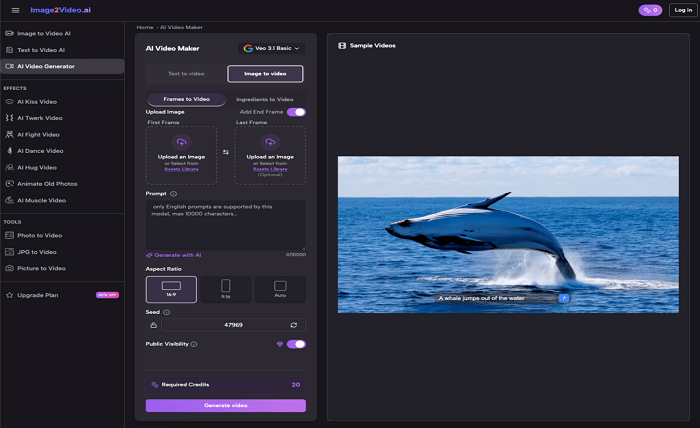
While the technical side of an Image to Video AI platform is complex, the user interface is usually designed to be approachable. However, each step has its own set of nuances that can make or break your final clip.
1. The Upload Phase
Most platforms support standard formats like JPEG and PNG. The “trap” many beginners fall into is uploading low-resolution images. Because the AI is essentially “hallucinating” new frames based on your original, a low-quality starting point leads to a grainy, distorted video.
2. Crafting the Prompt
This is where the real learning happens. Instead of just saying “make it move,” you have to describe the nature of the motion. Do you want the wind blowing through hair? A slow cinematic zoom? Natural language is the bridge here. I’ve found that being specific about the “camera” movement often yields better results than being specific about the “subject” movement.
3. The Processing Window
On average, a high-quality Image to Video AI converter takes about five minutes to render a five-second clip. This is a great time to work on your next prompt or organize your asset library. It’s a significant shift from traditional video editing, where the “work” happens while you are clicking; here, the work happens in the preparation and the waiting.
4. Review and Export
Once the status hits “Completed,” you’ll likely get an MP4 file. My advice? Don’t be discouraged if the first version isn’t perfect. Sometimes the AI adds a strange artifact or the movement is too subtle. This is the moment to tweak your prompt and try again
Strategic Applications for New Creators
Once you move past the “wow” factor of seeing a photo to video transformation, you have to ask: What do I actually do with this? For small business owners and content creators, the value lies in efficiency and engagement.
| User Category | Primary Use Case | The “AI Edge” |
| Marketers | Product Showcases | Turns a single product shot into a 360° or “living” ad. |
| Educators | Animated Diagrams | Makes complex infographics more digestible through motion. |
| Social Managers | Story Content | Keeps feeds fresh without needing a full film crew. |
| Personal Use | Memory Montages | Adds a cinematic feel to family photos for sharing. |
Bridging the Gap in Marketing
For a small e-commerce brand, hiring a videographer for every product launch is expensive. Using Image to Video AI allows you to take your existing high-quality product photography and turn it into eye-catching social media ads. It’s not about replacing video production; it’s about filling the gaps where you otherwise would have used a static image.
Enhancing Educational Content
I’ve observed that educators often use these tools to bring historical photos or scientific diagrams to life. A static image of a cell is one thing, but a five-second clip showing a slight “pulse” or a camera pan across the organelles makes the content significantly more engaging for students.
Managing the “Uncanny Valley” and Technical Limits
It is important to address the limitations of current Image to Video AI technology. We aren’t yet at a stage where you can generate a 10-minute feature film with one click.
The 5-Second Constraint Most tools currently focus on short-form content. While you might want a longer video, these five-second clips are actually perfect for the “TikTok era.” If you need a longer video, the strategy is to generate multiple clips and stitch them together in a traditional editor. This “hybrid” workflow—AI for generation, human for assembly—is currently the most effective way to produce high-quality work.
Camera Motion Control One of the more advanced features you’ll encounter is the ability to direct the “camera.” Tools that allow for panning, zooming, and tilting give you a level of creative agency that simple automation doesn’t. In my experience, mastering the “zoom-in” effect is the easiest way to make a photo to video conversion feel intentional and professional rather than accidental.
Practical Tips for Better Results
If you’re just starting out, here is a quick checklist to keep your expectations grounded and your results high:
- Start with High Resolution: The AI can’t create detail that isn’t there. Use the sharpest image possible.
- Keep Prompts Simple Initially: Start with “slow cinematic zoom” or “gentle wind movement” before trying complex interactions.
- Use the Effects Library: Many platforms offer pre-set transitions and filters. These are often more reliable than manual prompting for beginners.
- Think in Layers: If you want a “picture video with music,” remember that the AI handles the visuals, but you might want to add the audio in a separate step for better synchronization.
- Mobile vs. Desktop: Most Image to Video AI platforms are web-based. I’ve found that while it’s fun to generate clips on a smartphone, the “prompt engineering” part is often easier on a desktop where you can see the details of your source image more clearly.
The Path Forward: Incremental Improvement
Adopting Image to Video AI isn’t an overnight transformation of your creative output. It’s a new skill set that sits somewhere between photography and cinematography. You will have “failed” generations where the movement looks unnatural, and you will have “eureka” moments where a simple photo of a mountain range turns into a breathtaking opening shot for a vlog.
The key is to stay curious and patient. As the technology improves, the “processing” times will likely drop and the length of the clips will grow. But for now, the magic lies in the ability to take a single moment frozen in time and give it a heartbeat. Whether you are a marketer looking for an edge or a hobbyist wanting to animate family memories, the journey from image to video is one of the most exciting frontiers in modern content creation.